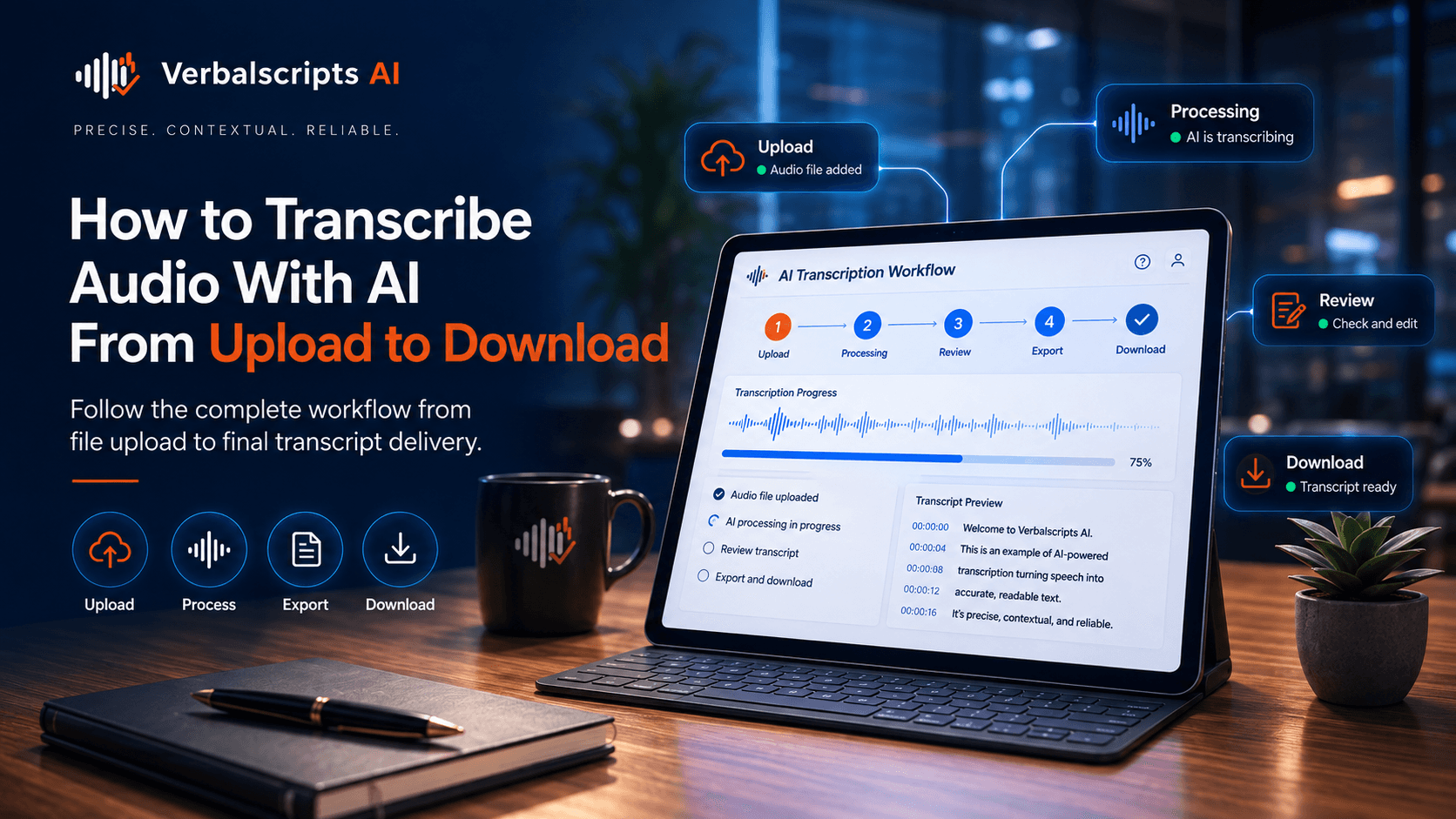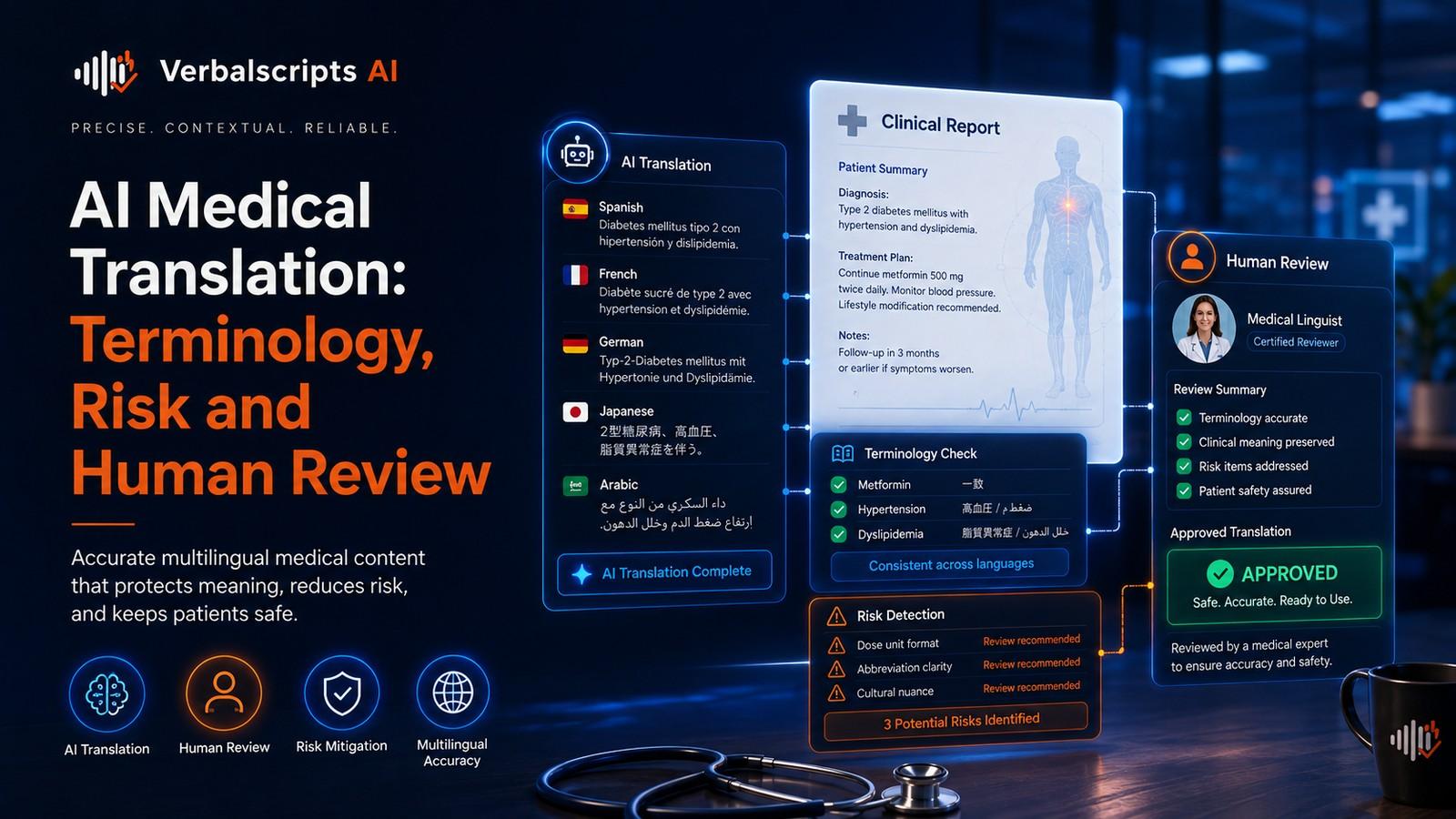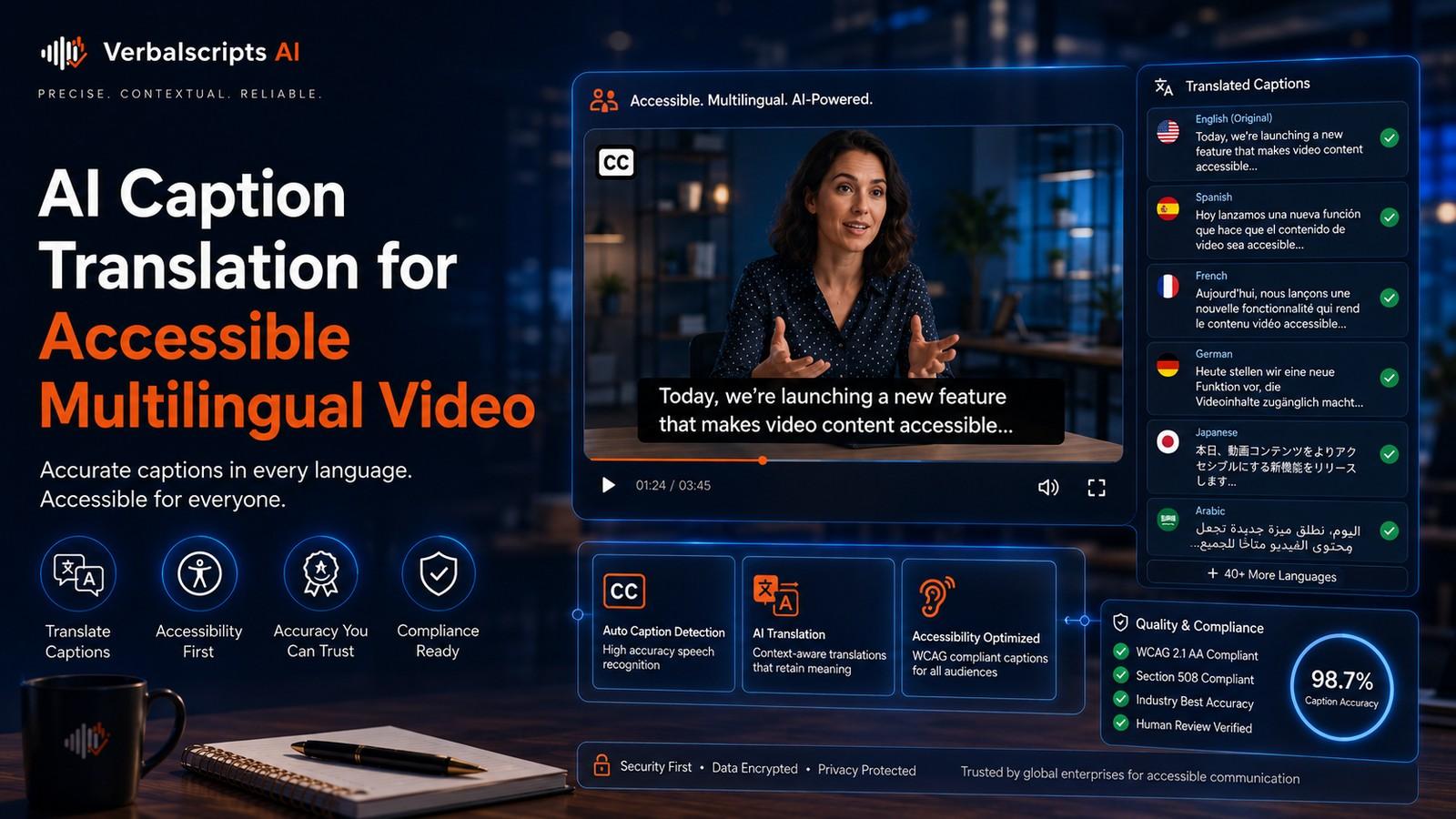
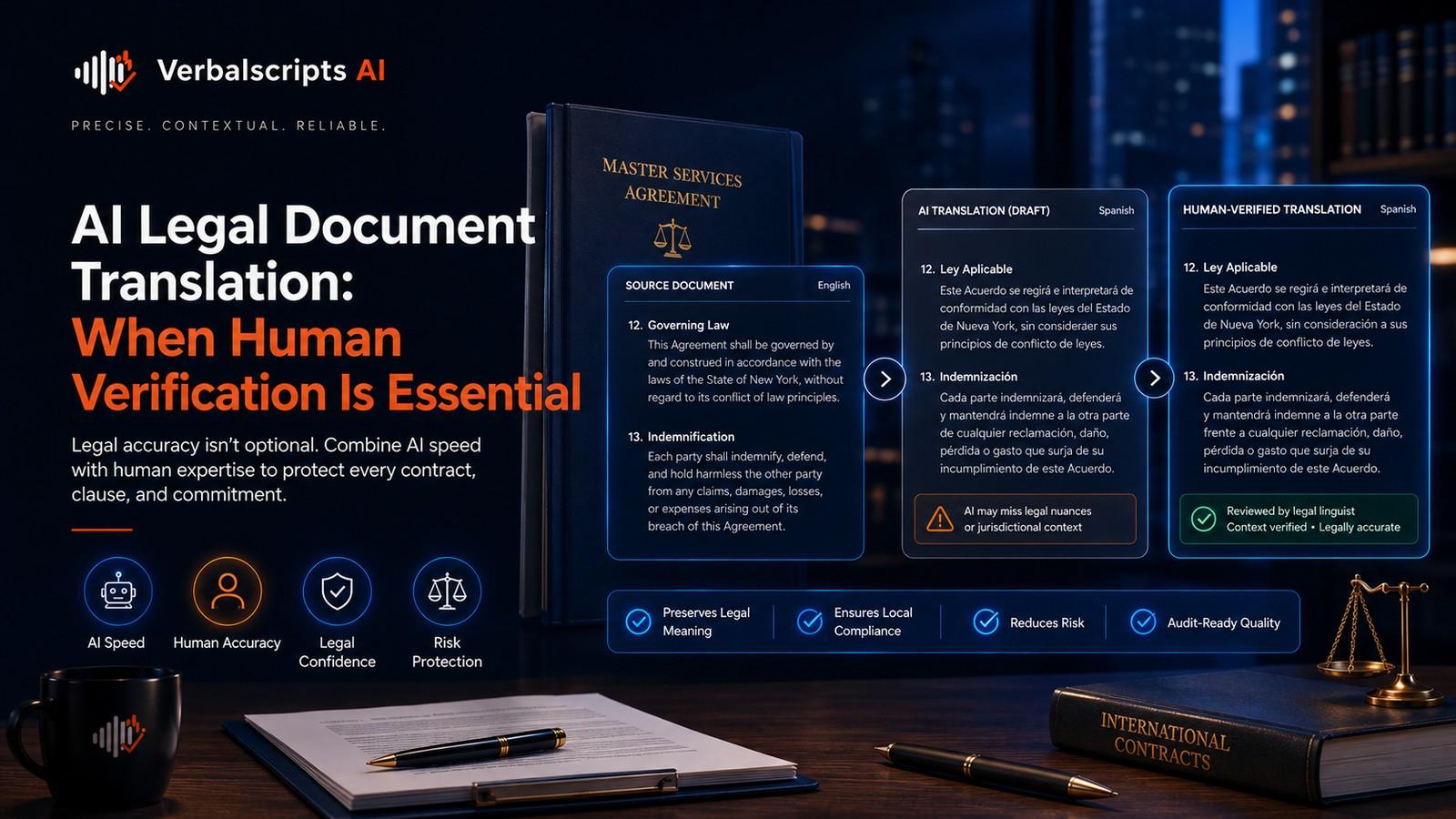
How do you translate a document with AI? Upload a supported file, identify the source language or let the system detect it, select the target language and locale, apply any glossary or terminology rules, run document translation, review the translated output for meaning and formatting, and then download the final file. For high-stakes or public-facing content, add human review before publishing or sending the document.
AI document translation can turn a PDF, Word file, presentation or spreadsheet into another language without forcing you to copy and paste every paragraph into a chat box. The most useful systems process the document as a file, preserve as much structure as possible, and return a translated file that can be reviewed and used.
For production multilingual workflows, see our AI Translation service for the delivery path behind the guidance in this article.
The workflow looks simple (upload, choose a language, translate, download) but reliable results depend on what happens before and after the model produces the translated text.
For straightforward internal content, AI can make document translation dramatically faster. For contracts, healthcare content, financial disclosures, official records or brand-critical documents, the translation should be treated as a draft until it has been appropriately verified.
What AI document translation actually does
A document translation system typically performs several tasks in one pipeline:
- reads the file structure;
- extracts translatable text;
- identifies or accepts the source language;
- translates the text;
- protects non-translatable content when possible;
- rebuilds the file using the original structure;
- returns a translated document.
The quality of the final file therefore depends on both linguistic translation and document reconstruction.
A DOCX file contains paragraphs, styles, tables, headers, comments and other structured objects. A PDF may contain positioned text, images, vector elements and scanned pages. A spreadsheet may contain formulas, values, labels and comments. These formats require different handling.
Step 1: Choose the right source file
If you have the original editable file, use it whenever possible.
Google Cloud’s current document translation guidance explicitly notes that native DOCX and PPTX files generally preserve layout and style better than PDFs. Its documentation also warns that scanned and complex PDFs may lose formatting, especially in multi-column layouts, tables, charts and graphs.
That leads to a practical rule:
Translate the source format, then create the PDF.
If a brochure was designed in PowerPoint, translate the PPTX rather than a PDF export. If a report was written in Word, use DOCX. PDF should be the source only when it is truly the authoritative or only available copy.
Step 2: Check whether the document is native or scanned
A native PDF contains machine-readable text. A scanned PDF is primarily an image of a page.
A simple test is to try selecting individual words. If you cannot select text (or selecting text produces nonsense), the file may require optical character recognition (OCR).
OCR converts visible text in an image into machine-readable text. Azure’s current Document Translation documentation states that scanned PDFs can be processed using OCR while retaining original layout as far as the service can reconstruct it. Google similarly supports scanned PDFs but warns that formatting loss is more likely.
OCR errors become translation errors. A misread account number, name or sentence enters the translation system as incorrect source text.
Step 3: Clean the source before translation
AI translation is not a substitute for source-file hygiene.
Before uploading, check for:
- duplicate pages;
- tracked changes that should not be translated;
- hidden text;
- broken OCR;
- outdated comments;
- inconsistent terminology;
- handwritten annotations;
- embedded images containing important text;
- password protection;
- corrupted fonts;
- text boxes outside the visible page area.
If the document contains confidential data, also verify the provider’s privacy, retention and security terms before uploading it.
Step 4: Identify the target language and locale
“Translate to Spanish” may be enough for a personal note. It may be too vague for customer-facing content.
Language identifies the linguistic system. Locale identifies a market or regional convention.
For example, a target specification may be:
- Spanish for Mexico;
- French for Canada;
- Portuguese for Brazil;
- English for the United Kingdom;
- Arabic for Saudi Arabia.
Locale affects terminology, date formats, currency, punctuation, tone and sometimes legal conventions.
Microsoft’s localization guidance emphasizes that localization extends beyond word replacement to dates, currencies, measurements, cultural references and other market-specific details.
Step 5: Decide what must not be translated
A document can contain text that should remain unchanged:
- product names;
- trademarks;
- model numbers;
- URLs;
- email addresses;
- code;
- part numbers;
- legal identifiers;
- personal names;
- citations.
Create a do-not-translate list before processing important files.
Modern translation systems may support glossaries or terminology files. Google Cloud defines a translation glossary as a custom dictionary used to control domain-specific terminology, named entities and words that should remain unchanged.
If a company translates recurring documents, terminology control should be part of the standard workflow rather than an optional final check.
Step 6: Add a glossary or terminology instructions
A glossary can specify:
Source term → approved target term
But a production glossary should ideally include context and definitions.
For example, “account” could mean a banking account, SaaS user account or customer relationship. One unconditional substitution may be wrong in two of the three contexts.
Prioritize:
- product terms;
- regulated terminology;
- legal defined terms;
- technical component names;
- acronyms;
- brand phrases;
- frequently mistranslated words.
The goal is not to force every common word into a glossary. It is to protect the terms whose inconsistency would create confusion or risk.
Step 7: Upload the document
A professional upload interface should make several things clear before processing:
- supported formats;
- maximum file size;
- source and target languages;
- whether OCR will be used;
- whether formatting is preserved;
- glossary selection;
- data-retention rules;
- expected turnaround;
- whether human review is available.
For batch translation, large files may be stored in cloud object storage and processed asynchronously. For a single file, synchronous processing can be simpler.
Azure’s current Document Translation service supports both synchronous single-document translation and asynchronous batch workflows.
Step 8: Detect or select the source language
Automatic language identification is useful, but explicit selection is safer when you know the source language.
Detection can struggle with:
- very short documents;
- mixed-language files;
- code-switching;
- names and numbers;
- closely related languages;
- scanned text with OCR errors.
If a document is bilingual, the workflow should explicitly support mixed-language content rather than assuming the first detected language applies to every segment.
Step 9: Run the AI translation
The system now translates text while attempting to retain structure.
A high-quality document workflow should preserve or correctly handle:
- paragraphs;
- headings;
- lists;
- tables;
- headers and footers;
- hyperlinks;
- page breaks;
- text boxes;
- comments;
- footnotes;
- formatting styles.
Preservation varies by file type and provider.
Google notes that native PDF translations preserve elements such as hyperlinks, font size and font color more reliably than scanned PDF workflows. It also recommends DOCX or PPTX over PDF when those original formats are available.
Step 10: Inspect the translated file visually
Never assume “translation completed” means “document ready.”
Open the actual translated file and look for:
- clipped text;
- overlapping elements;
- missing text;
- font substitution;
- bad line breaks;
- distorted tables;
- misaligned captions;
- page-count changes;
- misplaced footnotes;
- wrong text direction;
- untranslated images.
Text expansion is normal. Microsoft’s localization guidance warns that translated text may be considerably longer than English and can create layout issues.
A flexible document layout is easier to localize than a design in which every text box fits the source language by a few pixels.
Step 11: Review the translation for meaning
Visual QA and linguistic QA are different.
A reviewer should compare source and target and check:
- no omissions;
- no unsupported additions;
- correct names;
- correct numbers;
- terminology;
- tone;
- grammar;
- instructions and warnings;
- internal consistency.
For low-risk internal material, spot-checking may be sufficient. For external, legal, regulated or safety-related material, a qualified reviewer should inspect the full document.
Step 12: Check numbers, dates and units separately
Numbers deserve a dedicated pass because they are easy to overlook and expensive to get wrong.
Verify:
- currency;
- percentages;
- decimal separators;
- thousands separators;
- dates;
- times;
- measurement units;
- invoice numbers;
- account numbers;
- section references.
Localization may intentionally change formatting conventions while preserving the underlying value.
A translation that changes 1,250.50 into a locale-appropriate written form can be correct. A translation that changes the quantity is not.
Step 13: Review tables and structured content
Tables are a common failure point because cell width is constrained.
Check:
- row/column alignment;
- heading correspondence;
- values under the correct labels;
- merged cells;
- text wrapping;
- footnotes;
- sort order;
- RTL behavior.
If the document is a financial or technical report, verify that every number remains associated with the correct heading after reflow.
Step 14: Check images and embedded text
Text inside images may not be translated by every workflow.
Current Azure Translator capabilities include image translation in certain document translation modes, while other tools may leave text embedded in images untouched. PowerPoint translation tools can similarly translate slide objects while leaving text inside media images unchanged.
If an image contains:
- a diagram label;
- screenshot text;
- warning;
- chart legend;
- callout;
- product UI;
plan a separate image-localization step.
Step 15: Download and preserve the original
Keep:
- original source file;
- raw AI-translated file;
- reviewed final file;
- glossary version;
- reviewer notes.
A simple naming convention helps:
Report_EN_source.docx
Report_FR-CA_AI-draft.docx
Report_FR-CA_reviewed_v1.docx
This creates traceability and prevents someone from accidentally treating an unreviewed AI draft as the approved version.
Which file formats work best?
The answer depends on the translation service, but common document translation systems support combinations of:
- DOC/DOCX;
- PDF;
- PPT/PPTX;
- XLS/XLSX;
- TXT;
- CSV/TSV;
- HTML;
- XLIFF.
Google Cloud’s current supported-format documentation lists Office formats and PDF for document translation. Azure lists PDF, HTML, DOCX, XLSX, PPTX and other formats depending on synchronous or batch mode.
Do not interpret “supported” as “identical results.” Each format carries different layout and extraction challenges.
How accurate is AI document translation?
There is no universal percentage that applies to every file.
Accuracy depends on:
- language pair;
- subject matter;
- source quality;
- OCR quality;
- terminology;
- sentence complexity;
- layout;
- model;
- document context;
- review process.
A clean English-to-Spanish product FAQ and a scanned handwritten legal exhibit are not comparable translation tasks.
The right question is:
Does this workflow meet the quality requirements for this content type?
That should be answered with representative testing and review data.
AI-only versus human-reviewed document translation
AI-only translation
Best suited to:
- internal understanding;
- low-risk research;
- draft material;
- high-volume triage;
- content that will not be published as-is.
Human-reviewed AI translation
Better suited to:
- customer-facing content;
- contracts;
- healthcare;
- finance;
- public-sector material;
- technical instructions;
- branded communications;
- content where mistakes are expensive.
Human review does not remove the benefits of AI. It concentrates expert time on verification and refinement rather than translating every word from scratch.
A practical quality checklist before download
Before approving the final document, verify:
- target language and locale are correct;
- all expected pages are present;
- no source-language blocks remain unintentionally;
- names and product terms are correct;
- numbers and dates match;
- tables remain aligned;
- links work;
- graphics have been checked;
- formatting is readable;
- RTL direction is correct where applicable;
- reviewer comments have been resolved;
- final filename clearly identifies the approved version.
SEO and AEO considerations for translated documents
If the file will be published on a website, the webpage around the document matters too.
Create a useful HTML landing page with:
- translated page title;
- translated meta description;
- clear language declaration;
- descriptive link text;
- localized summary;
- appropriate hreflang relationships when equivalent web pages exist.
Google recommends separate locale-specific URLs and hreflang or sitemaps for multilingual or multi-regional page variants. It also warns that locale-adaptive pages can be difficult to crawl reliably.
A downloadable translated PDF should not be the only multilingual signal on an otherwise monolingual page.
Frequently asked questions
Can AI translate an entire document at once?
Yes. Modern document translation systems can process complete files and return translated versions while preserving varying degrees of formatting and structure.
Does AI preserve document formatting?
Often, especially for native editable formats such as DOCX and PPTX. Complex PDFs and scanned documents are more likely to experience formatting loss.
Can AI translate scanned PDFs?
Yes, if the workflow includes OCR. OCR quality directly affects translation quality.
Should I translate the PDF or the original Word file?
Use the original editable file when available. Current Google Cloud guidance specifically recommends translating DOCX or PPTX before creating the final PDF because layout preservation is generally better.
Is human review required?
Not for every use case. It is advisable when the document is high-stakes, customer-facing, regulated, contractually important or difficult to translate.
Conclusion
AI document translation is most reliable when it is treated as a complete file workflow rather than a one-click language conversion.
Start with the best available source file, specify language and locale, control terminology, translate with enough context, inspect the reconstructed document, verify meaning and formatting, and keep the final approved version distinct from the raw AI draft.
That process preserves the two things a professional translated document needs: the right meaning and a usable file.
Research references
- Google Cloud, Document Translation:
- Google Cloud, Supported formats:
- Google Cloud, Translation glossaries:
- Microsoft Azure, Document Translation overview:
- Microsoft Learn, Localization overview:
- Google Search Central, International and multilingual sites: