How do you preserve formatting during AI document translation? Use the original editable file whenever possible, translate structured document objects rather than flattening the file to plain text, use terminology and exclusion rules, allow room for text expansion, preserve styles instead of manual formatting, and perform a visual QA pass on the translated file. Native DOCX and PPTX files generally preserve formatting more reliably than complex or scanned PDFs.
A translated document is not finished when every sentence has been converted into the target language.
For production multilingual workflows, see our AI Translation service for the delivery path behind the guidance in this article.
The document must still work as a document.
Headings should look like headings. Tables should remain aligned. Footnotes should remain associated with the right text. A warning should not disappear because the translated sentence no longer fits inside a text box. Page structure, typography and visual hierarchy all contribute to meaning.
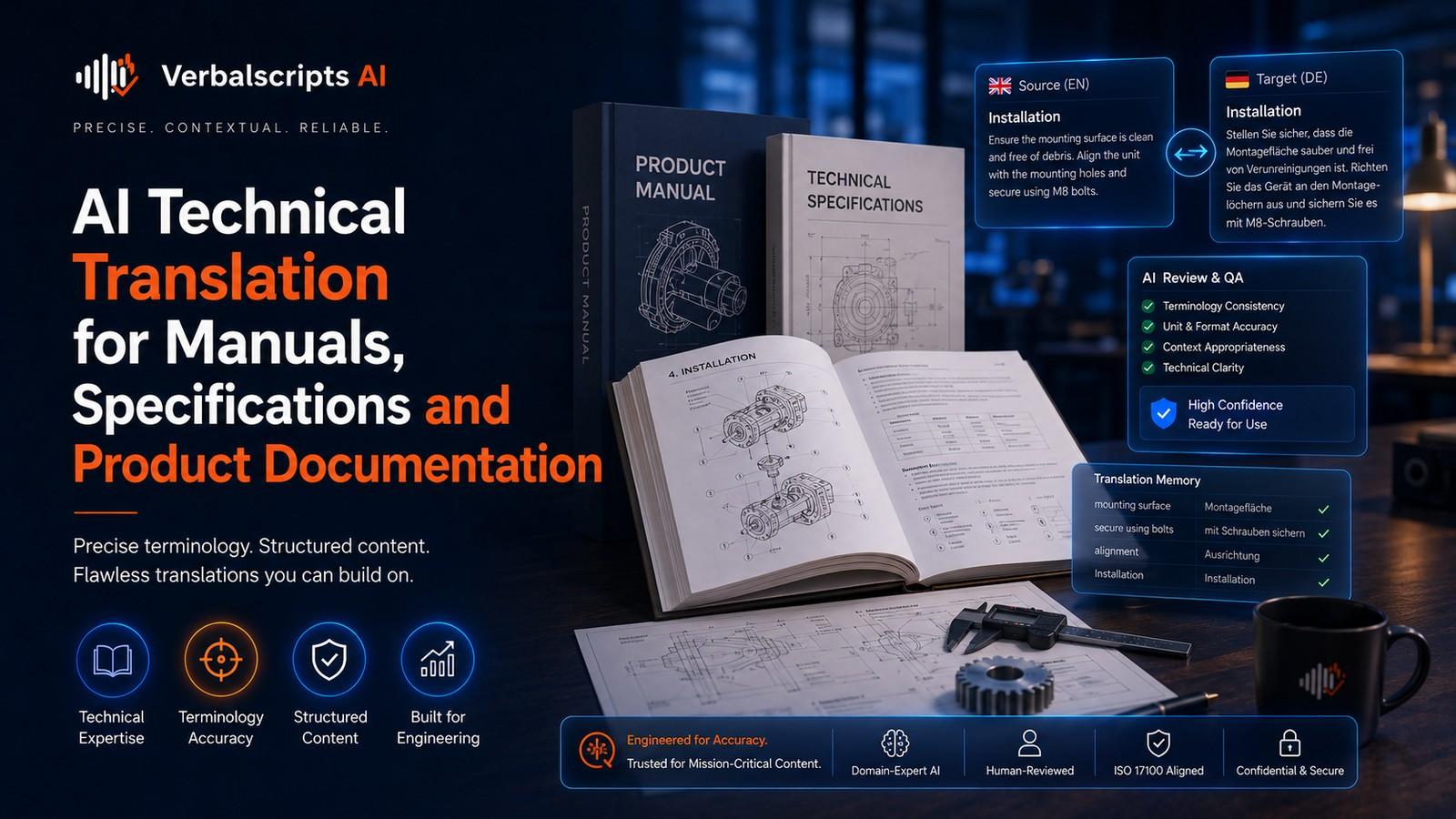
Current Google Cloud guidance explicitly recommends translating DOCX or PPTX source files rather than PDF when those originals are available because layout and style are generally retained better.
Why translated text changes layout
Translation changes more than vocabulary.
A target-language sentence can be:
- longer;
- shorter;
- written in a different direction;
- broken into words differently;
- rendered with a different font;
- punctuated differently.
Microsoft’s localization guidance notes that text translated from English into many languages can become considerably longer, potentially creating layout problems.
A design that barely fits English has almost no localization resilience.
Start with structured source files
The strongest defense against formatting loss is choosing the right input.
Prefer:
- DOCX over exported PDF;
- PPTX over slide PDF;
- XLSX over printed spreadsheet PDF;
- HTML/XML over screenshot captures.
Structured formats expose relationships between text and layout.
A Word heading knows it uses a heading style. A PowerPoint title is a text object. An Excel label lives in a cell.
In a PDF, those elements may be reduced to text coordinates.
Use styles, not manual visual formatting
Documents built with styles are easier to translate and maintain.
Instead of manually setting every heading to 18pt bold, use a Heading 2 style. Instead of spacing paragraphs with blank lines, use paragraph spacing.
Benefits include:
- consistent resizing;
- easy font replacement;
- reliable table of contents;
- better accessibility;
- faster global layout changes.
If the target script needs a different font, changing one style is safer than editing hundreds of manually formatted runs.
Plan for text expansion
Do not ask whether translation will expand. Assume some segments will.
For documents:
- avoid fixed-height text boxes;
- allow table cells to grow;
- use responsive or auto-fit features carefully;
- avoid placing body text over images;
- leave white space near captions;
- test long headings.
For interfaces, Microsoft recommends flexible layouts and pseudolocalization as techniques for identifying truncation problems before full localization.
The same principle works for documents: simulate longer text early.
Keep source and target structure aligned
A professional document translation pipeline should maintain identifiers that link translated content back to source objects.
For example:
- paragraph ID;
- slide and shape ID;
- spreadsheet cell coordinate;
- table cell index;
- comment ID.
This prevents reconstructed text from being inserted into the wrong place.
It also supports review: a reviewer can compare the target segment with its exact source.
Fonts are part of layout
Fonts differ in:
- character width;
- x-height;
- line height;
- script support;
- weight;
- punctuation behavior.
A translated file may overflow even when word count is similar because the target font renders more widely.
For multilingual documents, choose font families with coverage for the required scripts or define compatible fallback fonts.
Check:
- bold and italic availability;
- numerals;
- punctuation;
- CJK glyphs;
- Arabic shaping;
- combining marks;
- diacritics.
Do not substitute a font simply because it “looks close” if the result breaks the target language.
Paragraph direction
Right-to-left languages require true direction metadata, not only right alignment.
A paragraph can be right-aligned while still behaving as left-to-right text internally.
Correct RTL layout affects:
- cursor movement;
- punctuation;
- numbers;
- list markers;
- table flow;
- mixed English text.
Documents should be tested using software that properly supports bidirectional text.
Headings and hierarchy
Translation should preserve semantic hierarchy.
If a source document has:
- Title;
- Heading 1;
- Heading 2;
- Heading 3;
the target should retain those relationships even if the words become longer.
This matters for:
- screen readers;
- navigation panes;
- tables of contents;
- SEO when content is exported to HTML;
- document consistency.
Do not flatten headings into visually bold paragraphs.
Tables
Tables are one of the most common layout failures.
Translated text may:
- wrap to additional lines;
- increase row height;
- push values off-page;
- split across pages;
- cause columns to become too narrow.
Before translation, identify whether table dimensions are fixed.
After translation, verify:
- cell ownership;
- column order;
- merged cells;
- numeric alignment;
- header repetition;
- page breaks.
For RTL languages, decide whether the entire table should mirror or whether data order should remain stable.
Lists
Lists may contain automatic numbering or hard-coded numbers.
Automatic numbering is safer because the document application controls sequence and indentation.
Translation QA should check:
- bullet direction;
- indentation;
- numbering;
- cross-references;
- nested levels.
Do not accidentally translate a list marker that is functioning as syntax.
Headers, footers and page numbers
Headers and footers can be overlooked because they repeat outside the main body.
Check:
- document title;
- confidentiality notice;
- section name;
- version number;
- page number;
- legal footer;
- website URL.
Page count may change after translation, especially if text expands. Cross-references such as “see page 12” may need updating.
Footnotes and endnotes
Footnotes contain normal translatable language but also structural links.
A document translation workflow should preserve:
- reference marker;
- note body;
- sequence;
- hyperlink between marker and note if supported.
Avoid converting footnotes into plain inline text unless the output specification requires it.
Hyperlinks
A hyperlink has at least two elements:
- visible anchor text;
- destination URL.
Translate the anchor text when appropriate. Do not translate or corrupt the URL unless the destination itself has a localized equivalent and the project intentionally changes it.
Current Google documentation notes that native PDF translation can preserve hyperlinks more reliably than scanned PDF translation.
Comments and reviewer annotations
Comments require a policy.
In some projects they are part of the material to translate. In others they contain internal notes that should be removed before external delivery.
Record whether comments should be:
- translated;
- retained in source language;
- deleted;
- exported separately.
The same applies to tracked changes.
Text inside images
Layout preservation is impossible if important text is permanently embedded inside an image and the translation system never sees it.
Options include:
- OCR the image;
- edit the source design file;
- create a localized overlay;
- replace the image with a localized version;
- add translated caption text.
Current Azure document translation capabilities include OCR and image translation features in some workflows, but provider support varies.
Never assume image text has been translated because the surrounding page was.
Charts and graphs
Charts can contain:
- title;
- axis labels;
- legend;
- data labels;
- annotations.
If those elements are live objects in a presentation or spreadsheet, they may be localizable. If they are part of a bitmap image, they require image localization.
The underlying numerical data should not be altered merely to translate labels.
PDF layout challenges
PDF translation can fail visually even when the source contains selectable text.
Why?
A PDF may position individual text spans at exact coordinates. Once translation makes the text longer, there may be no room.
Multi-column documents introduce reading-order challenges.
Complex elements include:
- forms;
- sidebars;
- tables;
- callouts;
- equations;
- captions;
- rotated text.
Google’s current documentation explicitly warns about formatting loss in complex PDF layouts and recommends native editable formats where available.
Scanned documents
Scans require OCR before translation and therefore add another reconstruction step.
The output may need to recreate:
- paragraph boundaries;
- columns;
- tables;
- line breaks;
- stamps;
- signatures;
- handwriting zones.
Do not judge a scanned document translation only by whether the target text reads correctly. Compare it page-by-page with the source.
Presentation layout
PowerPoint translation deserves a special warning: a translation tool may change only the text.
Microsoft’s current Copilot presentation translation documentation states that the system does not automatically resize the layout when translated text becomes longer and does not mirror slides when moving between LTR and RTL languages.
That means slide localization requires a post-translation design pass.
Spreadsheet layout
Excel adds grid-based constraints.
Translation can affect:
- column width;
- row height;
- comments;
- text wrapping;
- chart labels;
- print areas.
Formulas must remain functional and references must not be corrupted.
Treat formulas as logic, not prose.
Use a layout QA matrix
A repeatable QA process should inspect each class of object.
| Object | What to verify |
|---|---|
| Paragraphs | no clipping or strange line breaks |
| Headings | hierarchy and style preserved |
| Tables | values remain in correct cells |
| Images | text localized if required |
| Lists | numbering and indentation intact |
| Hyperlinks | anchor and URL behavior correct |
| Footnotes | references preserved |
| Headers/footers | repeated content translated correctly |
| Fonts | target characters supported |
| RTL text | direction and mixed text display correctly |
Automated checks
Automation can identify some layout risks.
Useful checks include:
- text overflow;
- missing shapes;
- changed page count;
- untranslated source-language runs;
- font fallback;
- corrupted links;
- missing table cells;
- empty text boxes.
These checks should complement visual review, not replace it.
Human visual review
A native speaker is not necessarily a document-layout specialist, and a designer is not necessarily a linguist.
For complex deliverables, separate responsibilities:
Linguistic reviewer: meaning, terminology, tone.
Document QA reviewer: layout, typography, tables, images.
A final reviewer should ensure that the corrected language still fits after edits.
Version control
Every layout fix changes the target document.
Keep clear versions:
- AI draft;
- linguistic review;
- layout review;
- final approved.
If a late linguistic correction is inserted into the final design, rerun visual QA on the affected page or slide.
Source-authoring best practices
The cheapest layout problem is the one prevented in the source.
Create localization-friendly documents by:
- using styles;
- avoiding text baked into images;
- using real tables;
- leaving expansion space;
- avoiding manual line breaks;
- using Unicode;
- separating content from design where possible;
- tagging language correctly;
- maintaining editable source files.
Internationalization is preparation for localization. Microsoft defines it as designing content or products so they can be adapted to different audiences with fewer engineering changes or rework.
The same logic applies to document templates.
Frequently asked questions
Why does formatting break after AI translation?
Translated text changes length and sometimes direction, and certain file formats expose less structure to the translation system. PDF is especially sensitive to fixed-position layouts.
Which format preserves layout best?
Editable formats such as DOCX and PPTX usually give translation systems more structure than PDF. Exact performance depends on the provider and document complexity.
Can AI keep tables intact?
Often, especially in structured formats. Tables still need QA because longer text can change column widths, row heights and page flow.
Does translation software automatically fix text overflow?
Not always. Microsoft’s current PowerPoint translation guidance specifically warns that translated text may be longer and the tool does not automatically change font size or layout.
Should I translate a PDF if I have the Word source?
Usually no. Translate the editable source and generate the PDF afterward, unless the PDF itself is the authoritative source.
Conclusion
Layout preservation is not a cosmetic final step. It is part of translation quality.
The best results come from structured source files, localization-friendly authoring, style-based formatting, Unicode-safe fonts and post-translation visual QA. Complex PDFs and scans deserve additional caution because their visual structure can be difficult to reconstruct.
A professionally translated document should look intentional in the target language, not like the source language was replaced after the design was finished.
Research references
- Google Cloud, Document Translation:
- Microsoft Learn, Localization overview:
- Microsoft Learn, Responsive user interface:
- Microsoft Support, Translate your presentation with Copilot:
- Microsoft Azure, Document Translation overview: